 Goodtake
Free screen recorder for Mac
Record your screen. Get a video that’s ready to share.
Goodtake adds zooms where you click, smooths your cursor, cuts filler words and writes the captions. Adjust anything in the editor, then export.
Free recording and editing on macOS 15 or later, with no watermark or account.
Captions and transcript editing require macOS 26. Pro’s AI tools use an AI service you connect.
 1
2
3
4
5
1
2
3
4
5
- 1Polish, one clickCuts the “um”s and long pauses, cleans up your voice and adds captions.
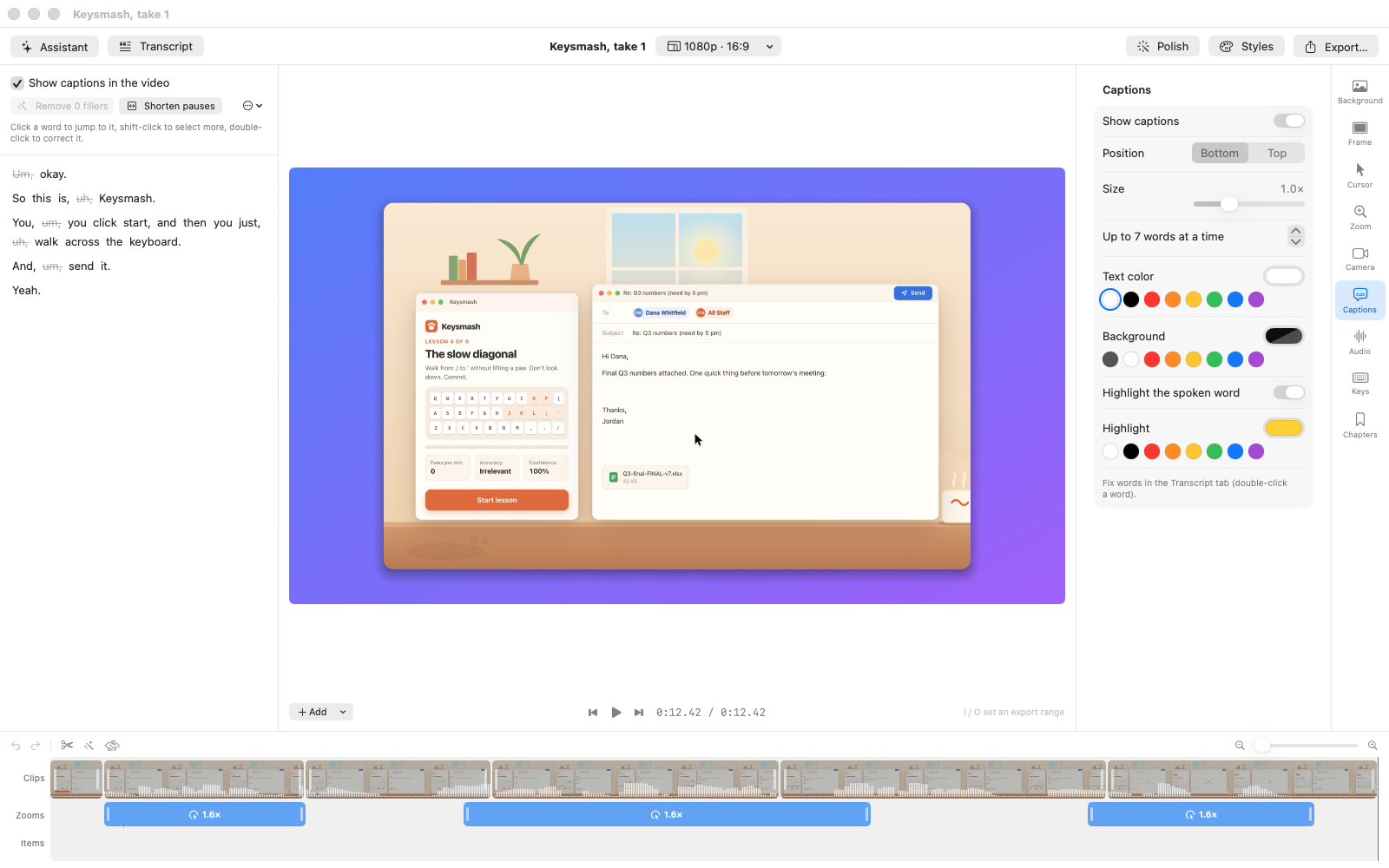
- 2The “um”s, goneStruck out in the transcript and cut from the video. Delete any words to cut them; retype one to fix the captions.
- 3Zooms where you clickedAlready on the timeline. Drag, resize or delete any of them.
- 4Framed and smoothA background, rounded corners and a cursor that glides instead of jitters.
- 5Export and shareLandscape, vertical or square, as MP4, GIF or ProRes.
Tour: recording. From the menu bar to the editor: a display, a window or an iPhone, the teleprompter, and the countdown. Presented by Cat.
Tour: the editor. The real Goodtake editor, filmed by itself. Cat walks through everything it does to a plain recording, in a minute.
Tour: characters. Appear as Fox, Penguin, Octo or any of 48 characters instead of your face, or build one that looks like you. Presented by Cat.
Politely. Cat presents a made-up tone checker for replying to Brad. A drawn presenter, so nobody had to be on camera.
Afterword. A made-up meeting app that turns the call into finished follow-ups. Sam presents; Claude wrote it and Gemini voiced it.
MathBrush. A real website, a one-sentence brief. Autopilot wrote, voiced and recorded it; nobody touched it.
Leafline. A made-up iPhone app, with Frog presenting beside it. The same video also exports vertical for Reels and Shorts.
A polished starting point, automatically.
Goodtake keeps your screen, cursor, clicks, camera and voice separate, so you can change the edit later. Drag the handle to compare the recording with Goodtake’s default export.
- Zooms land where you click and follow your typing
- The cursor is redrawn so it glides instead of jitters
- A frame, rounded corners, a shadow and a background
- Free, no watermarkRecord, edit and export as much as you like.
- No accountDownload it and press record.
- Files stay on your MacTranscripts, captions and voice cleanup are made on it.
- Pro, bought onceAI tools with no subscription, run on an AI service you connect.
Built not to lose a take.
- Recovers after a crashIf Goodtake or your Mac stops mid-recording, the recording is back next time you open it.
- Catches a silent microphoneThe countdown checks your mic is on, and you're told at once if it drops out; it switches to another and marks the gap.
- Watches your diskA warning before the disk fills, and a look at what's taking the room.
- A native Mac appWritten in Swift on Apple's own screen-capture and video frameworks.
Edit the words, and the video follows
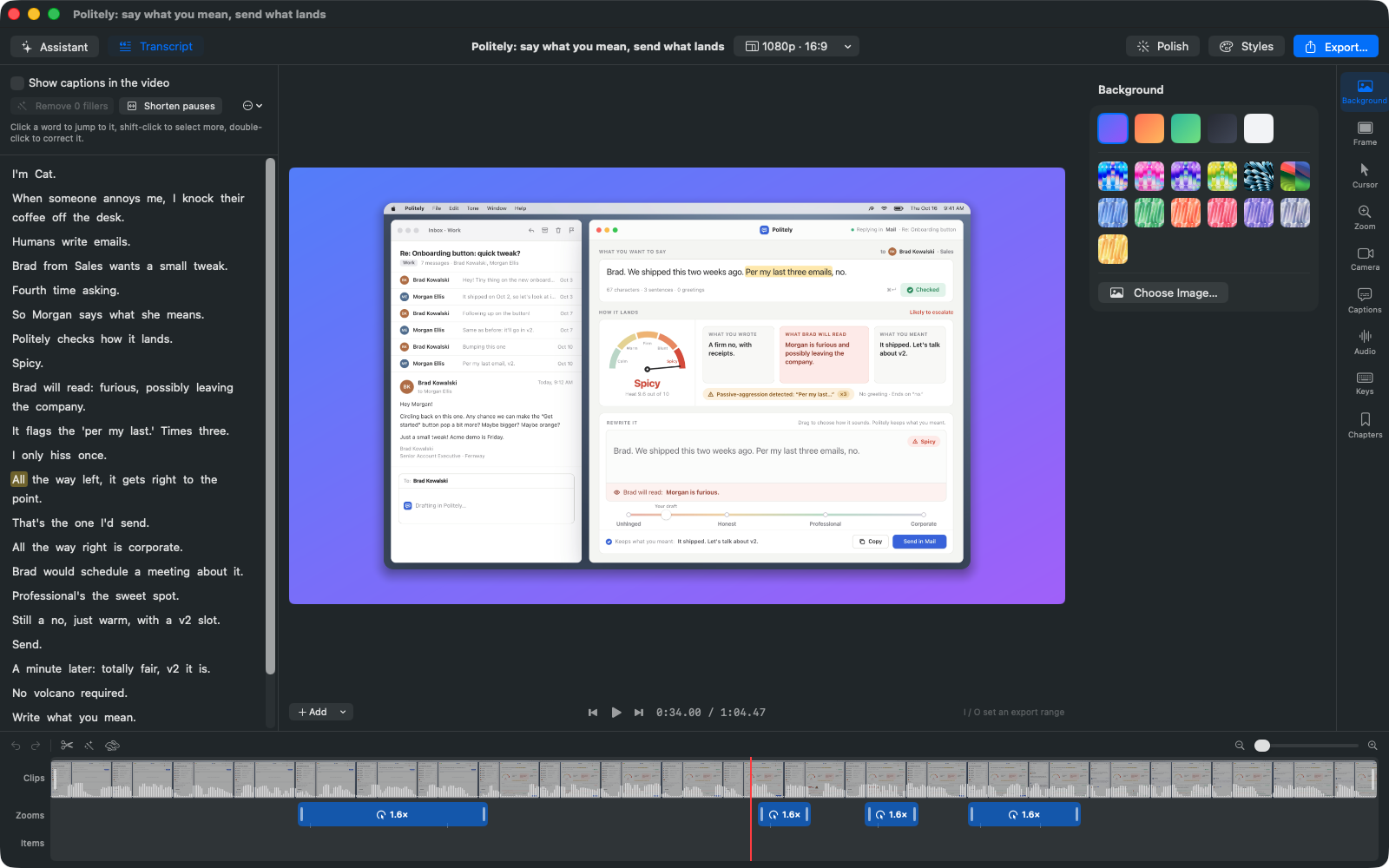
Delete words from the transcript to cut them from the video. Retype a word to correct the captions. Polish removes filler words and long pauses, cleans up your voice, and adds captions in one click (and one ⌘Z undoes it).
Captions come from your own voice, with the spoken word highlighted, and words you cut never show up.
Translate them on your Mac, or export .srt and .vtt files. The transcript is made on
your Mac with Apple's speech recognition.
One recording, three shapes.
Export in landscape, vertical or square. Goodtake follows your pointer and typing as it reframes the video, or shows the whole recording if you'd rather.
Vertical for Reels, Shorts and TikTok puts the app front and center and moves the presenter to the corner.
Three demos from this page, exported vertical. Tap one to play it with sound.
Framed, and turning in 3D
Put the recording in a browser window, a MacBook or an iPhone, tilt it, or let the camera turn slowly around it. Record your iPhone over a cable and it's framed in an iPhone, notch and all.
Pick a color, a gradient, a macOS wallpaper or your own picture behind it. Need it on top of something else? Export ProRes 4444 with a transparent background.
A teleprompter that listens
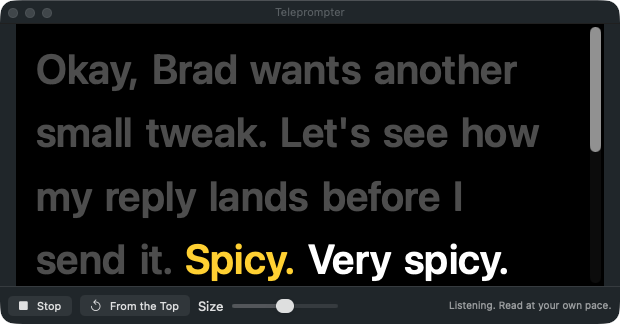
Paste your script and start reading. Goodtake follows along with on-device speech recognition and keeps your place, so there's no scroll speed to set. Ad-lib and it waits; skip a line and it catches up.
The teleprompter never appears in your recording.
Or edit from Claude Code, Codex or Cursor
Goodtake includes an MCP server, so the AI tools you already use can find your recordings, edit them, check a frame and export, right from the terminal or your code editor.
$ claude mcp add --scope user goodtake -- \
    /Applications/Goodtake.app/Contents/MacOS/goodtake-cli mcp

$ claude
> In my latest recording, cut the silences, zoom on the
  login form and export it as a vertical video.
Your face, any character
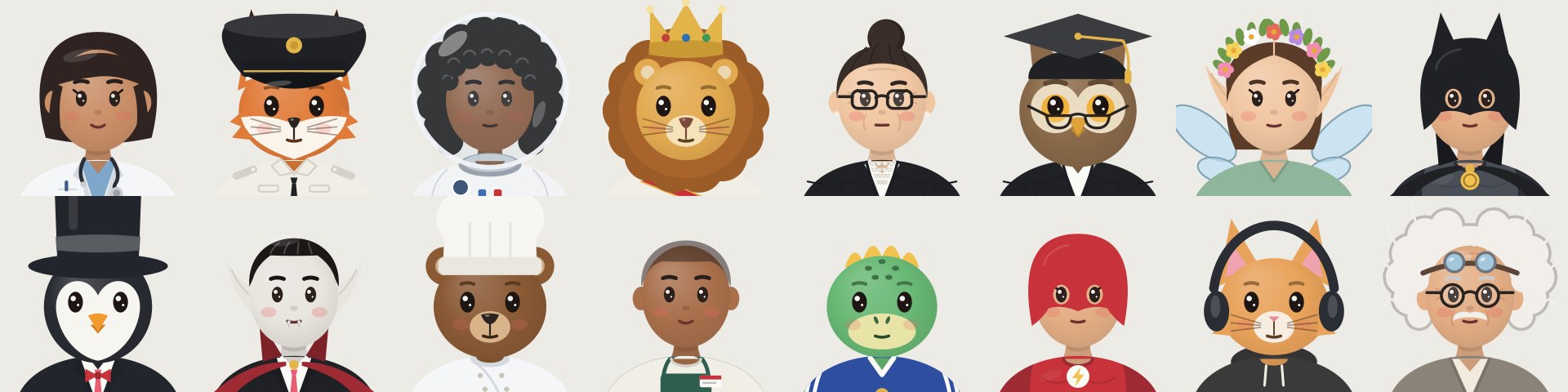
Turn on a character and it follows your face from the camera. It blinks when you blink, smiles when you smile, raises its eyebrows and turns its head with you. Your face never appears in the video.
Pick one of 48 characters, from a fox to a purple monster, or build one that looks like you. Change your mind after recording: swap the character and the same take plays with the new one. The face tracking runs on your Mac.
In the clip, the person is AI-generated; eight characters take turns following her face.
Pro
Goodtake Pro makes edits and demos for you.
One-time purchase. AI service usage billed separately.
Free during the beta. Everything in Pro is open to try until it goes on sale.
Pro's tools run on an AI service you connect. Everything above this is free.
Tell it what to change. Pro
Tell the Assistant what you want, in your own words. It reads the recording (the clicks, the pauses, what was said), makes the edits on the timeline, and checks a frame to see they look right. Every change can be adjusted by hand, and ⌘Z undoes it.
- “Cut the long pauses”
- “Blur the email address”
- “Zoom in whenever I click”
- “Add chapters”
- “Make it vertical for Reels”
It can only use Goodtake's editing tools on the recording you're in.
Make a product demo from a link. Pro
Give Autopilot your site and a short brief. It explores the pages, drafts a script for your approval, then clicks through the site while Goodtake records and narrates the demo. A drawn presenter can do the talking, so nobody has to be on camera.

Watch it make one. A demo of this website from a one-line brief, then how it was made, in under a minute.
Not only web apps: give it a paper, a deck or a document and it talks it through.
From your terminal: Claude Code can make the demo of your app on localhost.
In the app: Make a demo with Autopilot, under Start Recording · Needs Chrome · Pages behind a sign-in aren't supported yet.
Demos made without a camera. Pro
Every demo here was written, voiced and presented by Goodtake, with no camera and no editing: ten apps that don't exist, Goodtake's own tours, and MathBrush, a real site Autopilot explored on its own.
Change a line. Keep the voice. Pro
On a narrated video, rewrite any line in the script and say how it should sound: nervously, in a whisper, with a laugh or a pause. Goodtake voices it again in the same voice, makes room for it in the video, and the captions follow.
No re-recording, and no trying to match the take you did yesterday.
Dub it, too. Make a copy in another language: every line is translated on your Mac and voiced again (a narrated video keeps its voice), the video eases where a line runs longer, and the captions follow.
Everything else
Recording
- Display, window, area or a connected iPhone/iPad
- Up to 120 fps on ProMotion displays
- Camera, microphone and system audio as separate tracks
- Pause and resume; recovers recordings after a crash
- Tells you right away if your microphone drops out, switches to another if one disconnects, and marks any gap on the timeline
- Hide your camera preview while you record; the camera keeps recording
Editing
- Cuts, speed changes and transitions
- Text, arrows, boxes, blur and highlight masks, sketches
- Camera bubble, full-screen camera, side by side; blur what's behind you
- Title cards, pictures and clips between scenes; freeze frames
- Speed up long stretches of typing
- Saved styles for a consistent look
- Chapters on the timeline; arrows that point in from outside the frame
- Arrange what's on top: pictures, text, arrows and the camera
- The pointer as recorded, always an arrow, white for dark apps, or a colored dot
Audio
- Voice cleanup that removes background noise
- Re-record a voiceover over the edited video
- Free music to pick from, or your own; it dips while you talk
- Move, trim, fade and set the level of music and sounds on the timeline
- Speaker labels on calls: you and everyone else
- Click sounds (soft, mouse, trackpad or pop) and key sounds (soft, mechanical or typewriter)
Library, export and share
- Each recording named from what you said, worked out on your Mac
- Find a video by its name, its app, or anything said in it
- See how much room your videos take, clear what Goodtake can make again, and get a warning before the disk fills
- HEVC, H.264, ProRes (with transparency) and GIF
- Chapters, and a Final Cut Pro project
- Combine several recordings into one video
- Share links through your own S3, R2 or B2 storage
Your video files stay on your Mac.
Recording, transcription, captions, translation, voice cleanup, background removal and naming your recordings all run on your Mac, and Goodtake has no account. When you use a Pro AI tool, Goodtake sends what that task needs to the service you connect:
- Share links upload the video only to storage you set up yourself (S3, R2 or B2).
- The Assistant sends your request, the transcript and the frames it checks to your AI (OpenRouter, Anthropic, Claude Code or Codex).
- Autopilot sends the brief and what it read to the AI you set up (OpenRouter, Anthropic, Claude Code or Codex), and the script to the voice you pick (Gemini through OpenRouter or your key, or ElevenLabs).
Questions
Is it really free?
Yes. Recording, editing, Polish, captions, characters and export are free, with no watermark, no account and no time limit. Goodtake Pro, bought once, adds the AI features: Autopilot, voicing lines again, dubbing and the Assistant. They're free to use while Goodtake is in beta. See pricing.
Which Macs does it run on?
macOS 15 Sequoia or later. A few features use speech recognition that's new in macOS 26: transcription (and the captions made from it), translation, and the teleprompter following your voice.
What permissions does it ask for, and why?
Screen Recording, to record. Camera and Microphone, only when you turn them on. Input Monitoring is optional: it lets zooms follow your clicks and typing. Accessibility is optional too: it lets zooms follow the text cursor while you type. Goodtake records where you typed, not what, unless you turn on recording keystrokes so they can be shown in the video.
What do I need for the AI features?
Goodtake Pro, and an AI account of your own. The easiest is OpenRouter: press Connect OpenRouter in Goodtake's settings, sign in, add some credit, and it covers both the scripts and the voices, paid as you use it; what a video costs depends on the service and the video's length. You can also paste an Anthropic or Gemini key, use ElevenLabs voices, or use Claude Code or Codex if you have them. Your Mac's own voices are free and need nothing.
What if my microphone drops out in the middle of a take?
Goodtake watches the microphone while you record. If it goes quiet or disconnects, a note under the record button says so straight away, so you can say that part again. If the microphone is unplugged, Goodtake carries on with your Mac's own microphone. When you stop, it lists any moments with no sound and marks them on the timeline, so you know where to listen.
Will my recordings fill up my disk?
Recordings are saved on your Mac, so they do take room. The storage button on Home shows how much, clears the files Goodtake can make again (previews, worked-out sounds, Autopilot's renders), and lists your biggest videos to move to the Trash. Goodtake won't start recording when your disk is almost full, and it warns you if it gets low while you record.
How is this different from QuickTime or the screenshot toolbar?
Those capture a finished video. Goodtake keeps the screen, cursor, clicks, camera and audio separate, so it can re-render the video with zooms, a smooth cursor, captions and cuts, and you can still change all of it afterwards.
Where do the videos on this page come from?
They're real Goodtake exports. The apps in them are made up, and each one is played back by a script so a demo comes out the same every time. Claude wrote the narration, Gemini voiced it, and Goodtake did the zooms, cursor, captions, frames and the talking character. The tours film the real Goodtake app.
Record once. Fix the rough parts later.
Free, no watermark, and no account, for macOS 15 or later. This is version 0.1, an early release: expect a few rough edges, and frequent updates.